How Do You Calculate Security System ROI?
October 30, 2026
How to Respond to Alarm Alerts Without Delay
October 31, 2026Quick Summary
Start by confirming two-way audio is enabled in the camera app, then check mute controls and volume on both the phone and camera. If audio still fails, inspect the microphone and speaker for blockage or damage, verify network strength, update firmware, and confirm the app has microphone permission on your phone.
- Many cameras ship with audio off or set to record-only, so check the app first.
- Check both the app and the camera’s web interface if audio is enabled in one but not the other.
- Test by speaking, then listening for a reply on the other end.
- Restart the camera by unplugging it for 30 seconds when the microphone is not working.
- Reset the camera only after saving your configuration, since a factory reset erases custom settings.
Table of Contents
Why Two-Way Audio Fails on Outdoor Cameras
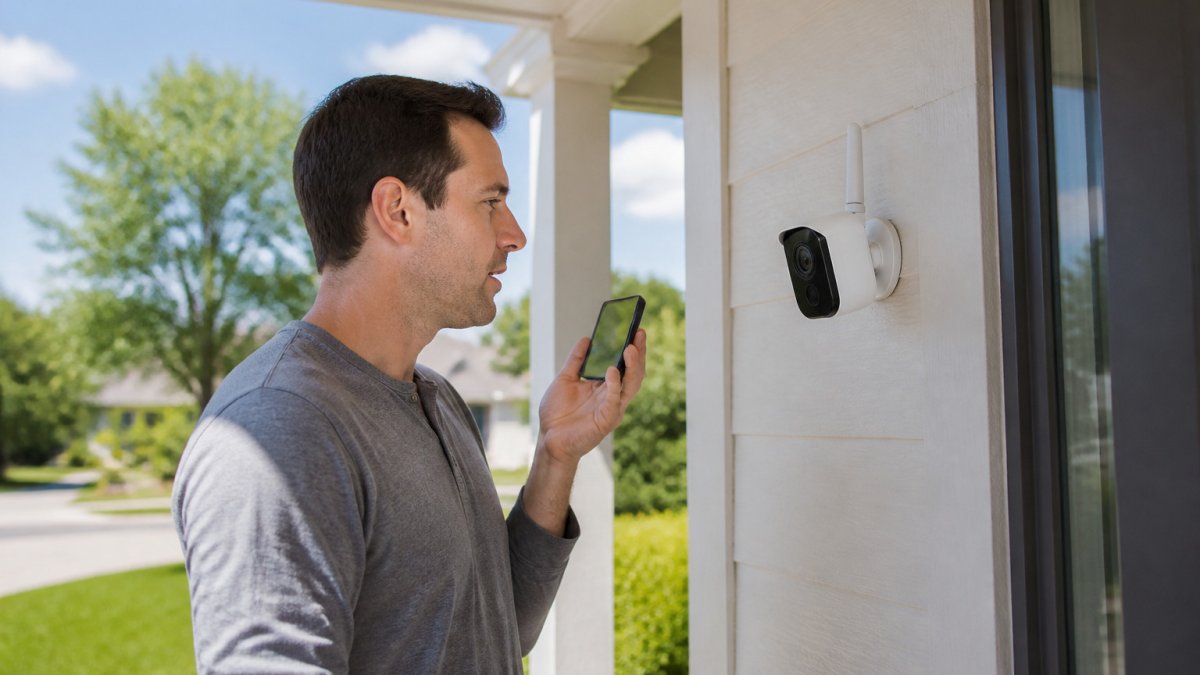
Two-way audio lets you hear visitors and speak through your outdoor camera from your phone. When it stops working, the cause is usually a setting, a connection, or a weak network, not a broken camera. Check the simple fixes first, then work through the steps below in order.
Two-way audio is a feature that sends sound in both directions at once, from the camera microphone to your phone and from your phone to the camera speaker. Outdoor cameras face extra challenges: wind, rain, traffic noise, and long cable runs can all degrade sound. Knowing where to look saves time.
Step 1: Confirm Audio Is Enabled in the Camera App
Start in the app, not on the camera. Many cameras ship with audio off or set to record-only, and a firmware update can reset the setting.
Open the camera’s live view and look for a speaker or microphone icon. Tap it and confirm it is active. Then check the settings menu for options such as “Two-Way Talk,” “Audio,” or “Microphone,” and make sure each is switched on.
Watch out: Audio may be enabled in the app but disabled on the camera’s own web interface. Check both places if the problem continues.
Step 2: Check Microphone and Speaker Mute Controls and Volume
A muted microphone or speaker is one of the most common causes of silence. Look at both the app and the camera.
- Unmute the microphone in the live view
- Unmute the speaker separately
- Raise the speaker volume to about three-quarters
- Check the phone’s own volume and ringer settings
- Make sure the phone is not in silent or Do Not Disturb mode
Test by speaking, then listening for a reply on the other end.
Step 3: Diagnose Why the Security Camera Microphone Not Working
If you hear nothing from the camera, the microphone is the likely problem.
Work through these checks:
- Confirm the microphone opening on the camera body is not blocked by dirt, paint, or a protective film
- Look for a separate microphone-in connection if your model uses an external mic
- Check that a powered microphone has its own power source
- Restart the camera by unplugging it for 30 seconds
- Test in a quieter place to rule out wind noise
Step 4: Diagnose a Security Camera Speaker Not Working Problem
If the camera hears you but you cannot hear the visitor, or the visitor cannot hear you, check the speaker path.
- Check the speaker output connection if your camera uses an audio-out port
- Confirm the speaker has not been disconnected during a recent cable change
- Verify the volume level in the app
- Test with headphones on the phone to separate app issues from phone issues
A speaker can also fail silently after water exposure. Inspect the housing for moisture or corrosion.
Network, Firmware, and Permission Checks That Fix Persistent Audio Faults
Get a Free Security Assessment →
When the basics pass, the problem often sits in the network or the software.
Network connectivity: Two-way audio needs a stable connection. Check the Wi-Fi signal strength at the camera location. Weak signal causes audio delay and dropouts. Move the router, add a range extender, or use a wired connection if possible.
Firewall and ports: Some home or business networks block the traffic two-way audio uses. Confirm the camera’s required ports are open and that no firewall rule blocks the camera’s IP address.
Firmware: Outdated firmware can cause audio bugs. Check the manufacturer’s site for the latest version and install it.
Phone permissions: On iPhone and Android, confirm the camera app has permission to use the microphone. For more on app access and connection setup, see remote mobile access setup for security cameras. Go to phone settings, find the app, and turn on microphone access. Without it, your voice will not reach the camera.
Mobile versus desktop: Some features work only in the mobile app. If audio fails in a browser, test the mobile app before assuming a hardware fault.
Two-Way Audio Security Camera Best Practices for Reliable Calls
Follow these habits to help keep audio working:
- Mount the camera where the microphone is shielded from strong wind
- Keep the lens and microphone clean
- Update firmware and the app together
- Test two-way audio once a month
- Use a dedicated power source for powered microphones
If you plan to mount cameras outdoors, placement matters as much as settings. Position the microphone away from gutters and vents, and angle it toward the area you want to hear. For more detail, read our guide on mounting outdoor security cameras.
When to Reset, Repair, Replace, or Call Support
Reset the camera first if settings and network checks pass but audio still fails. Use the factory reset only after saving your configuration, since it erases custom settings.
Contact the manufacturer if the microphone or speaker stays silent after a reset and firmware update. If audio still fails after these checks, a professional commercial camera system review can help you decide whether the system needs repair or replacement. A failed component may need warranty replacement.
Consider repair or replacement if the housing shows water damage, the cable is cut, or the camera is old enough that the manufacturer no longer releases updates.
For a professional review of your system, including camera placement and wiring, contact ADP Security Systems to discuss your options. You can also explore professional camera installation and repair services to see what help is available. You can also request a Free Security Assessment.
Frequently Asked Questions
Why can I hear my outdoor camera but not talk through it?
This usually points to the camera’s microphone input, the app’s talk permission, or a muted or disabled microphone setting. Start by confirming that the app’s microphone permission is granted on your phone and that the talk or mic button is active during a call. Next, check the camera’s audio settings to make sure two-way audio and the microphone are enabled. If the camera is hardwired or uses an external mic, inspect the mic-in connection for loose wiring. Restart the camera and the app, then test again with a short two-way call.
Why does two-way audio on my security camera sound distorted or echo?
Distortion and echo often come from volume set too high, an overly sensitive noise filter, or audio feedback when the camera’s microphone picks up sound from its own speaker. Lower the speaker volume, reduce microphone sensitivity if the app offers it, and avoid talking while the speaker is near a hard surface that reflects sound. Weak Wi-Fi can also cause choppy or garbled audio, so check signal strength at the camera location. If the problem persists after these adjustments, update the camera firmware and app to the latest versions.
Can Wi-Fi problems cause two-way audio to stop working?
Yes. Two-way audio streams in real time, so weak signal strength, high latency, or an unstable home network can cause delays, dropped audio, or a call that never connects. Check the signal at the camera mounting location with your phone’s Wi-Fi indicator, and consider moving the router, adding an access point, or relocating the camera closer to it. Confirm that your firewall or router is not blocking the camera’s required ports or outbound connections, and restart both the router and the camera after any network change.
When should I reset or contact support about a camera audio problem?
Reset the camera only after you have checked the audio settings, mute controls, permissions, network connection, and firmware. A reset can clear a stuck audio fault but will remove custom settings, so note your configuration first. Contact support if the microphone or speaker still fails after a reset, if you hear crackling or see physical damage to the device, or if the camera works in the app but not on the wired connections. A professional technician can test the hardware, verify wiring, and determine whether the unit needs repair or replacement.