Can Medical Alerts Call Family? What to Expect
October 5, 2026
Benefits of Smart Home Security Systems
October 7, 2026
Table of Contents
- Smart Lock Security System Compatibility: What Works Together
- Smart Lock and Alarm System Setup: A Step-by-Step Walkthrough
- Smart Lock Home Automation: Rules That Actually Help
- Smart Lock Security Risks: What to Watch For
- When the Network Goes Down: Failure Handling and Recovery
- Privacy, Event Logs, and Access Permissions
- Testing and Measuring Success After Integration
- Frequently Asked Questions
Last Updated: October 6, 2026
Smart Lock Security System Compatibility: What Works Together
Integrating smart locks with security systems starts with one question: will your lock and alarm panel talk to each other? Most do, but only when they share a wireless protocol or ecosystem. This guide from ADP Security Systems covers compatibility, setup, automation, and the risks nobody mentions.
Smart lock security system compatibility is the ability of a lock and panel to exchange status and commands over a shared protocol or platform. Without it, the lock still works but cannot trigger alarms or report events.
Three things decide whether your devices cooperate:
- Protocol match: both devices speak Z-Wave, Zigbee, Bluetooth, or Wi-Fi
- Ecosystem support: the panel officially supports that lock model
- Hub or bridge: some locks need a central platform to translate commands
Get all three right and the integration feels invisible. Miss one and you are stuck with two apps and no automation.
Wireless Protocols and Ecosystem Compatibility
Z-Wave locks pair reliably with most modern panels and mesh well. Zigbee offers similar range with lower power draw. Bluetooth locks are simple but need a bridge for remote access. Wi-Fi locks skip the hub but drain batteries faster.
Home automation platforms like SmartThings, Hubitat, and Home Assistant accept multiple protocols, which makes them useful bridges when your lock and panel do not match. The Z-Wave Alliance device database lists certified locks by brand and model.
Check three specs before buying anything:
- The lock’s protocol (Z-Wave Plus, Zigbee 3.0, Bluetooth, Wi-Fi)
- The panel’s supported device list, found in its official documentation
- Whether the lock needs a separate hub
How to Check Whether Your Lock and Panel Will Work Together
Start with the panel, not the lock. Panels publish a compatibility list, and a lock that is not on it will not integrate no matter how new it is.
Run this quick check:
- Find your panel’s model number on the unit or in its app
- Search the manufacturer’s compatibility page for that model
- Confirm your lock’s protocol appears on the supported list
- Note whether the panel needs a module for that protocol
If your panel supports Z-Wave, most Z-Wave locks will pair. If it only supports a proprietary format, you may need a bridge or panel upgrade. A common mistake is buying the lock first and discovering the panel later, do it in the other order.
Skipping the compatibility check before purchase is the single most common integration failure. The lock works fine on its own, but it never appears in your alarm app, and you lose every automation you planned.
Smart Lock and Alarm System Setup: A Step-by-Step Walkthrough
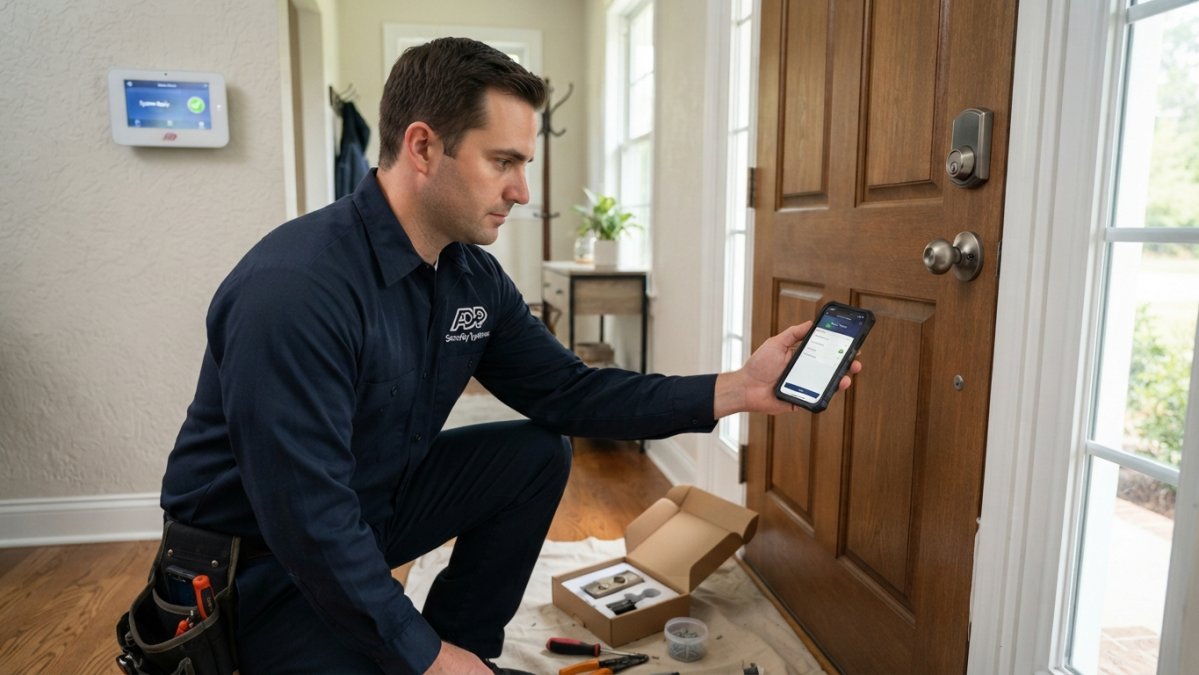
Most guides jump straight to “put the panel in pairing mode,” skipping the two steps that determine whether the integration holds: a pre-flight compatibility check and a post-pairing verification pass.
Step 1: Pre-Flight Checks Before You Touch the Panel
Do these in order. Skipping ahead is the most common reason a lock pairs but never appears in the alarm app.
- Confirm the panel’s supported device list. Check the manufacturer’s compatibility page for your exact panel model. “Z-Wave compatible” is not the same as “this lock is supported.”
- Confirm the protocol module is installed. Many panels ship without the Z-Wave or Zigbee radio; if it is missing, the lock will never enroll.
- Update firmware on both devices. A lock on old firmware may enroll but fail to report state changes.
- Note the lock’s pairing method. Button, keypad code, or QR code, write it down so you are not fumbling during a timed pairing window.
- Put fresh batteries in the lock. Low batteries cause intermittent enrollment failures that look like range problems.
- Have your panel’s master or installer code ready. You will need it to enter enrollment mode and name the device.
Step 2: Enroll the Lock on the Panel
Pairing windows time out fast, usually 30 to 60 seconds. Have the lock’s pairing trigger ready before you start the panel.
- Put the panel into inclusion or pairing mode from the installer menu.
- Immediately trigger pairing on the lock (button press, code, or app command).
- Watch for confirmation. If nothing appears, exit pairing mode, wait 30 seconds, and retry, do not leave the panel in pairing mode indefinitely.
- Once the lock appears, name it by physical location (“Front Door,” “Garage Entry”), assign it to a zone, and save.
- Lock and unlock from the panel app once to confirm two-way communication.
Step 3: Link the Lock to Alarm Behavior
Enrollment makes the lock visible; linking makes it useful. In most panels this means creating a rule or scene that references the lock as a trigger or target.
- Bind the lock to a zone so its state shows on the panel dashboard.
- Create one test rule (for example, “lock engaged → arm stay”) and leave it disabled until you finish testing.
- If your panel supports user codes tied to lock codes, map each household member to a code now, not later.
Step 4: Verify Before You Trust It
Run each of these and confirm the result before moving on:
| Check | How to Run It | Pass Condition |
|---|---|---|
| Two-way state | Lock from the app, then check the panel | Panel shows locked within a few seconds |
| Manual state | Lock by keypad or thumbturn | Panel updates without an app command |
| Event log | Unlock with a user code | Correct user name appears in the log |
| Rule trigger | Enable your test rule and lock the door | Correct zone arms |
| Notification | Trigger a lock event | Push notification arrives on your phone |
If any check fails, fix it before adding more automations, layering rules on a flaky pairing produces confusing behavior that is hard to debug later.
Troubleshooting the Common Failures
- Lock never appears during pairing: move the panel or lock closer, remove metal obstructions, and retry. Range and interference cause most failed enrollments.
- Lock pairs but shows “unknown” state: firmware mismatch or a missing device handler. Update both and re-enroll.
- Lock works locally but not remotely: the panel’s network connection or cloud service is the problem, not the lock.
Name every lock by its physical location, not its model. When you build automations six months later, “Front Door” tells you instantly which device you are arming, while “Lock 3” tells you nothing.
Do not build automations until every verification check passes. A rule built on an unstable pairing will fail silently, and silent failures are the ones that leave a door unlocked overnight.
Smart Lock Home Automation: Rules That Actually Help
Automation is where integration pays off, and where it can quietly undermine your security. A lock that reports its state to the panel lets you build rules that react to real events instead of schedules. Below are the rules most households keep long term, plus the design principles that keep them from becoming liabilities.
Automations Triggered by Lock Events
Useful rules most homeowners keep long term:
- Lock the door, and the panel arms in “stay” mode
- Unlock with a specific user code, and entry lights turn on
- Door left unlocked for ten minutes, and you get a phone alert
Arming, Disarming, and Remote Access
Remote locking and unlocking through the panel app is the most-used feature, let a contractor in from another state, then lock up behind them. Pair it with user codes so every entry is tied to a person, not a shared key.
Arming and disarming from lock activity needs care. Auto-disarm on unlock sounds convenient until a lost phone unlocks your door and silences the alarm. Keep disarm manual, or require a code plus the app.
Get a Free Security Assessment →
Safe Automation Design: Rules That Fail Safely
The difference between a helpful automation and a dangerous one is what happens when something goes wrong. Apply these principles to every rule:
- Never auto-disarm on a single event. A lock event, geofence arrival, or phone unlock should never by itself silence the alarm. Require a code, a second factor, or manual confirmation.
- Prefer “arm on lock” over “disarm on unlock.” Arming is fail-safe, a misfire gives a false alarm, not an open door. Disarming is fail-open, a misfire leaves your home unprotected.
- Scope unlock rules narrowly. Tie any unlock rule to a specific user code, time window, and door. Never unlock “any door” on a generic trigger.
The Risks Nobody Mentions
Every automation adds a path into your home network. The ones that matter most:
- Unintended disarming: a rule that disarms on a lock event can be triggered by a lost phone, a shared code, or a compromised account.
- Weak credentials: shared codes that never rotate, unchanged default installer codes, and reused app passwords.
- Account compromise: if your panel app account is breached, every automation it controls is exposed. Enable two-factor authentication wherever the panel app supports it.
The best lock automations reduce steps you already take. If a rule adds a confirmation screen or a second app, most people turn it off within a month. If a rule can disarm your alarm without a code, turn it off today.
Smart Lock Security Risks: What to Watch For
Every connected lock adds a path into your home network. The risks are manageable if you close the obvious gaps:
- Weak user codes: shared codes that never get changed
- Unpatched firmware: locks and panels both need updates
- Over-broad automation: rules that disarm on a single event
Change default installer codes on day one, review app users every few months, and enable two-factor authentication wherever the panel app supports it.
The CISA guidance on securing smart home devices recommends changing default credentials and keeping firmware current, two steps that block most common attacks.
When the Network Goes Down: Failure Handling and Recovery
Your internet will go out. The question is what your locks and panel do when it does.
Most smart locks keep working locally during an outage. Codes still unlock the door, and the lock still reports to the panel if they share a local protocol like Z-Wave or Zigbee.
Plan for the gap:
- Keep a physical key or mechanical override for every smart lock
- Confirm your panel has cellular or battery backup for alarm signaling
- Test the lock’s offline behavior before you need it
If your lock relies on Wi-Fi alone, an outage takes remote control with it. A hub-based lock keeps local control alive.
Privacy, Event Logs, and Access Permissions
Every unlock creates a record, useful for security, a privacy concern if unmanaged. Review these settings:
- Retention: how long the panel stores lock events
- Access: who can view logs, and whether guests see them
- Sharing: whether data leaves your account for third parties
Trim retention to what you actually need. A 90-day window covers most household questions without keeping years of comings and goings on a server.
For rental and commercial properties, set separate user codes per person and revoke them the day someone leaves. That single habit prevents more access disputes than any hardware upgrade.
Testing and Measuring Success After Integration
Integration is not done when the devices pair. It is done when you trust them.
Run this test after setup:
| Test | How to Run It | What Success Looks Like |
|---|---|---|
| Lock to panel | Lock the door from the app | Panel logs the event in seconds |
| Automation | Trigger your lock rule | Correct zone arms or light turns on |
| Remote access | Lock from outside the home | Command completes without error |
| Outage drill | Disconnect the router | Local codes still work |
| User code audit | Test each code | Only active users unlock |
Repeat the outage drill twice a year. Batteries, firmware, and network gear all change, and a lock that failed silently in March may strand you in December.
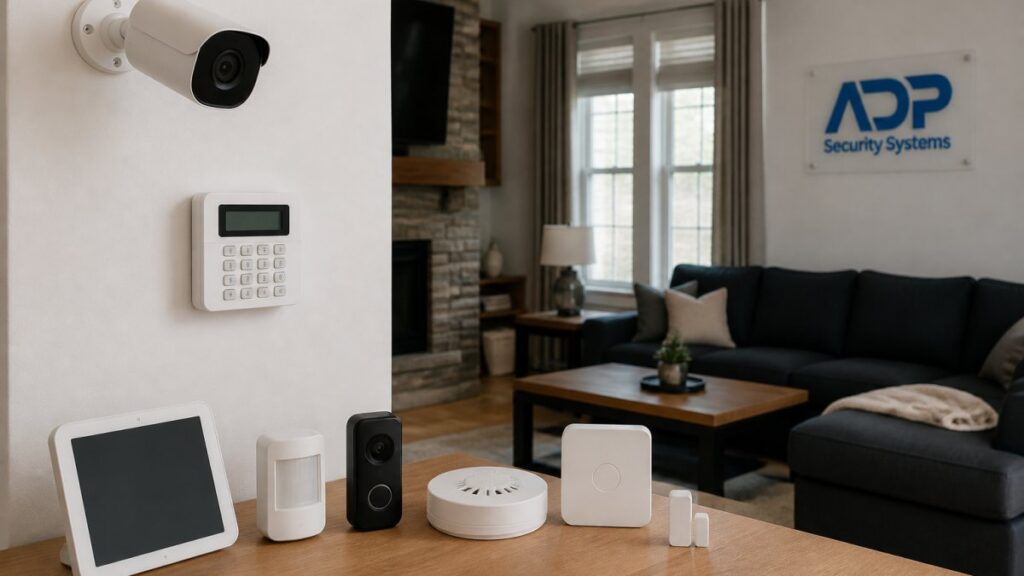
If you would rather not manage pairing, protocols, and firmware yourself, our team handles the whole process. ADP Security Systems installs and configures smart locks alongside alarm panels, cameras, and access control, with 24/7 monitoring and customizable maintenance schedules behind every system.
Integrating smart locks with security systems comes down to matching protocols, testing the connection, and planning for the day the network drops.
Frequently Asked Questions
Can a smart lock arm or disarm a security system?
Yes, if both devices support the same wireless protocol and are connected through a compatible hub or alarm panel. When you lock the door, the system can automatically arm; when you unlock it with a valid user code, the system can disarm. This requires an automation rule configured in your panel or hub app. Not every smart lock supports this, so check the lock’s integration documentation before buying.
Do smart locks work with alarm systems without a hub?
Some do, but only when the lock and the alarm panel speak the same protocol natively, such as Z-Wave or Zigbee. If your lock uses only Bluetooth or Wi-Fi and your panel does not support those, you will need a hub or a bridge device to translate commands. A hub also gives you a single app for lock status, event notifications, and automation rules, which is why most integrated setups include one.
How hackable are smart locks?
Any connected device carries some risk, but the practical threats are usually weak user codes, shared access permissions that are never revoked, and unencrypted communication between the lock and the hub. Use unique codes for each person, remove codes when someone moves out, enable two-factor authentication on the app, and keep firmware updated. Pairing the lock with a monitored alarm system adds a second layer: forced-entry or tamper events trigger an immediate alert.
What are the downsides of smart locks?
Battery life requires attention, typically every six to twelve months depending on use. Some models lose remote access if your Wi-Fi or hub goes offline, though the keypad and physical key still work. Compatibility can be limited: an older alarm panel may not support the protocol your new lock uses. Finally, guests and family members need clear instructions so they do not get locked out during a firmware update or network outage.