How to Test Glass Break Sensors Without Breaking Glass
November 7, 2026
Why Do Fire Alarms Chirp? What the Beep Means
November 8, 2026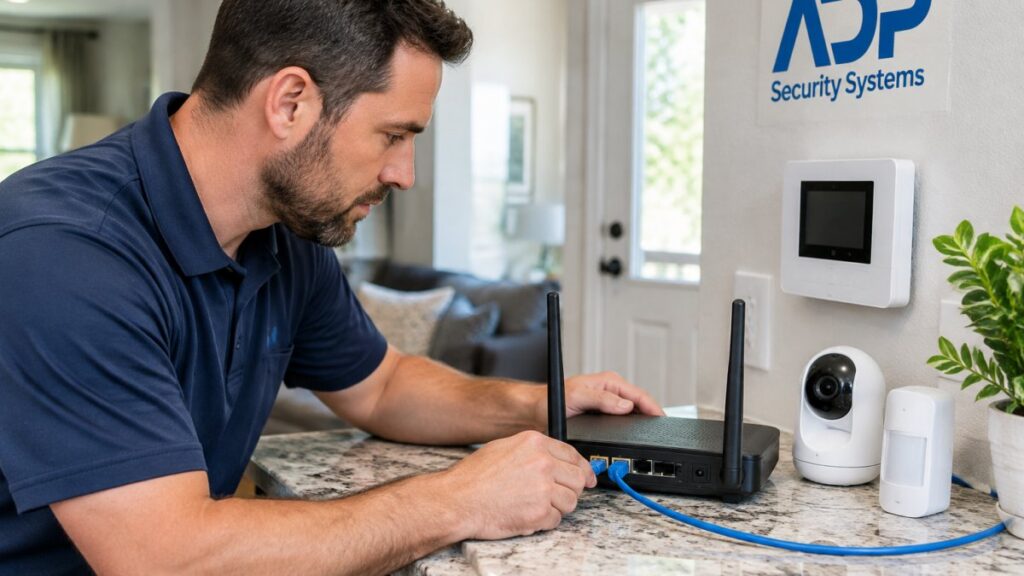
Last Updated: November 6, 2026
Quick Summary
Home security connectivity problems usually trace back to the network, not the hardware, and follow a clear order of likelihood: weak Wi-Fi signal, a router that needs a reboot, outdated firmware, changed credentials, IP conflicts, then app or ISP blocking. Work through these causes in that sequence, starting with a router restart and a signal check at the device.
- Unplug the router and modem, wait 30 seconds, then power the modem first and give it two minutes.
- A strong signal sits near -50 dBm, and cameras start dropping past -70 dBm.
- On 2.4GHz, only channels 1, 6, and 11 do not overlap with each other.
- Put cameras on a separate guest network or VLAN from phones, laptops, and hubs.
- A home alarm system communication failure means the panel cannot reach the monitoring center.
Table of Contents
- Why Your Home Security System Loses Connection
- Step 1: Restart Your Router and Check Wi-Fi Signal Strength
- Step 2: Fix a Security Camera That Keeps Disconnecting From Wi-Fi
- Step 3: Home Security System Offline Troubleshooting for Firmware and Credentials
- Step 4: Fix a Home Security App Not Working
- Step 5: Diagnosing a Home Alarm System Communication Failure
- Advanced Fixes: IP Conflicts, Interference, and ISP Throttling
- Get a Free Security Assessment for Your Home Network
- Frequently Asked Questions
Why Your Home Security System Loses Connection
Your home security system loses connection for one of four reasons: weak Wi-Fi signal, outdated firmware, a router problem, or an IP address conflict. Most homeowners blame the equipment first. That is almost never the culprit.
Dropped cameras and offline panels often trace back to the network the hardware sits on rather than to bad hardware.
Home security connectivity is only as reliable as the Wi-Fi it depends on, and many home networks were not built to carry always-on devices.
Below, we walk through a step-by-step diagnostic process. It starts with the simplest fix and moves toward the advanced issues that generic “restart your router” advice never touches.
Home security connectivity problems fall into a clear order of likelihood:
- Weak or unstable Wi-Fi signal
- Router or modem needs a reboot
- Outdated device firmware
- Wrong or changed network credentials
- IP address conflicts and interference
- App permissions or ISP-level blocking
Work through them in order. Skipping ahead wastes time.
Connectivity problems tend to follow a clear order of likelihood, so work through them in this sequence.
| Order | Possible cause |
|---|---|
| 1 | Weak or unstable Wi-Fi signal |
| 2 | Router or modem needs a reboot |
| 3 | Outdated device firmware |
| 4 | Wrong or changed network credentials |
| 5 | IP address conflicts and interference |
| 6 | App permissions or ISP-level blocking |
Step 1: Restart Your Router and Check Wi-Fi Signal Strength
Start with the router, not the camera. A router reboot clears temporary memory glitches and forces every device to reconnect cleanly. Unplug the router and modem, wait 30 seconds, then plug the modem back in first. Give it two minutes, then power the router.
While it reboots, check your signal. Walk to where the camera or panel is mounted and look at your phone’s Wi-Fi bars. Fewer than two bars means the device is fighting a weak signal.
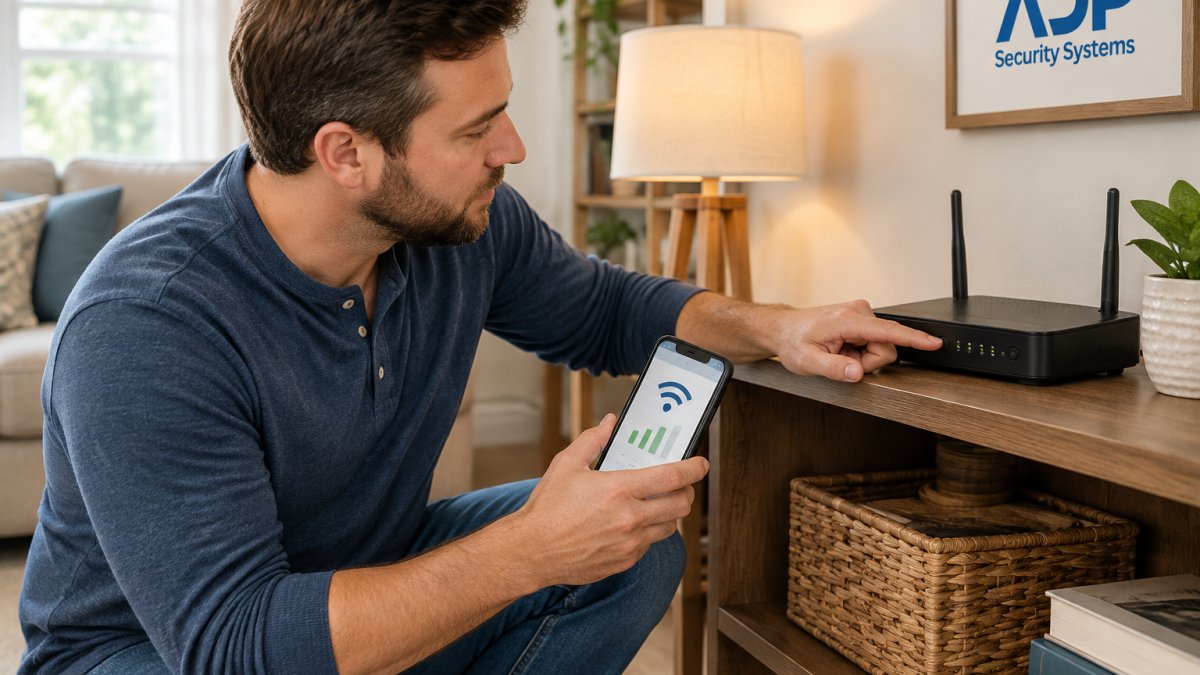
Signal strength is measured in RSSI, or received signal strength indicator. A strong connection sits near -50 dBm. Anything past -70 dBm is where cameras start dropping.
Two things kill signal fast: distance and walls. Brick, metal, and even a large fish tank sit between your router and the camera and eat the signal. A mesh network fixes this by placing a second node closer to the device.
Step 2: Fix a Security Camera That Keeps Disconnecting From Wi-Fi
A security camera that keeps disconnecting from Wi-Fi almost always sits on the wrong band, too far from the router, or on a crowded channel. Most cameras run on the 2.4GHz band because it travels farther through walls.
Work through these four checks in order. Each one rules out a specific failure mode before you move to the next.
1. Confirm the band. Open your router’s admin page and look at the connected-devices list. If the camera is on 5GHz and mounted outside or across the house, move it to the 2.4GHz SSID.
2. Measure the signal at the camera, not at the router. Phone Wi-Fi bars are a rough proxy. The number that matters is RSSI, measured in dBm, and it is negative, closer to zero is stronger. A camera at -50 dBm is solid.
3. Pick a clean channel. On 2.4GHz, only channels 1, 6, and 11 do not overlap. If your router is on channel 3 and a neighbor’s is on channel 4, both networks interfere.
4. Isolate the camera network. This is the step most guides skip, and it matters for security as much as stability. Put cameras on a separate guest network or VLAN from your phones, laptops, and smart-home hubs.
(/security-camera-placement-maximum-coverage/) walks through the angles and distances that keep both the view and the signal strong.
Watch out: cheap Wi-Fi extenders often make things worse. They cut bandwidth in half and add latency, and a camera that roams between an extender and the router can drop its stream mid-recording.
Step 3: Home Security System Offline Troubleshooting for Firmware and Credentials
When your panel shows offline, check firmware and credentials before you touch anything else. Home security system offline troubleshooting starts with two questions: is the device running current firmware, and is it using the right password?
Firmware is the software inside the device. Manufacturers push updates that fix connection bugs and close security gaps. An out-of-date camera can drop off for no visible reason. Open the app or the panel menu and look for a firmware update option. Run it, then power cycle the device.
Credentials cause just as many failures. If you changed your Wi-Fi password and forgot to update the camera, it will sit offline forever. Re-enter the network name, called the SSID, and the password on each device.
Watch out: a factory reset wipes your settings and pairing. Try a simple power cycle first, and only reset if the device stays offline after a firmware update and a fresh password entry.
Step 4: Fix a Home Security App Not Working
A home security app not working usually comes down to permissions, sync, or a login issue, not the system itself. The cameras are fine. The app just cannot reach them.
Work through this checklist:
- Confirm the phone has an active internet connection
- Check that the app has permission to use the local network
- Log out and log back in to refresh the session
- Force-close the app and reopen it
- Update the app to the latest version
- Restart the phone
App synchronization depends on the cloud service staying reachable. If the app shows devices as offline but the panel looks normal, the problem is often the app’s connection to the cloud, not the devices.
If your camera also has audio problems, the fix follows a different path. Our guide on troubleshooting two-way audio on outdoor cameras covers the microphone and speaker issues that sit outside the scope of a connectivity fix.
Step 5: Diagnosing a Home Alarm System Communication Failure
A home alarm system communication failure means the panel cannot reach the monitoring center. This is more serious than a dropped camera. A panel that cannot communicate cannot send an alarm.
Communication runs over one of three paths: a landline, a cellular radio, or an internet connection. Check which path your panel uses, then test it.
- Cellular: Confirm the radio has signal and the SIM is active.
- Internet: Confirm the panel’s network cable or Wi-Fi link is live.
- Landline: Confirm the phone line has a dial tone.
If the panel is dark or unresponsive, confirm it has power before anything else. A tripped breaker or a dead backup battery will look exactly like a communication failure. Cameras that seem offline may simply be in night mode, so it helps to know whether cameras work at night before you assume a hardware fault.
False alarms often travel with communication problems. Our breakdown of why home security systems keep false alarming explains the overlap.
Advanced Fixes: IP Conflicts, Interference, and ISP Throttling
Three advanced issues sit behind the stubborn connection drops that survive every basic fix. They are an IP address conflict, non-Wi-Fi interference on the 2.4GHz band, and ISP-level throttling or port blocking. Each has a distinct signature, and each has a fix that generic restart advice never reaches.
IP address conflict. Every device on your network needs a unique IP address. When two devices grab the same one, both can drop, and the pattern looks random, one camera goes offline, comes back, then another does the same.
Interference from non-Wi-Fi devices. Baby monitors, wireless doorbells, cordless phones, garage-door openers, and even microwave ovens share or bleed into the 2.4GHz band. They can jam a camera’s signal without ever showing up as a Wi-Fi problem, because the camera still sees the network, it just cannot hold a clean stream.
ISP throttling and port blocking. Some internet providers throttle upload bandwidth or block the ports that remote viewing and port forwarding rely on. The signature here is specific: cameras work fine on the local network but fail when you check them remotely, or the app connects but video will not load.
Read the router log before you guess. Most routers keep a log of DHCP leases, wireless client associations, and blocked connections. The log tells you which failure you are actually facing. Look for repeated “deauth” or “disassociate” entries for a camera’s MAC address, that points to signal or interference, not credentials. Look for DHCP conflicts or duplicate-IP warnings, that points to the IP conflict above.
For properties where the connection stays unreliable, reducing dependence on the cloud helps. Comparing cloud storage versus local recording for security shows how local recording keeps footage safe even when the network drops.
Get a Free Security Assessment for Your Home Network
Most connectivity problems trace back to a network that was never designed for always-on security devices. You can chase drops one at a time, or you can fix the foundation once.
ADP Security Systems has served South Carolina for over 30 years. The company installs security, fire, and life safety systems, and offers 24/7 alarm monitoring and customizable maintenance schedules.
A professional assessment can help review your network and device placement, and monitoring can be set up to support your system.
Get started with ADP Security Systems and put an end to the guesswork. Ask about a free security assessment to review where your system may need attention.
Frequently Asked Questions
Why does my security camera keep disconnecting from Wi-Fi?
The most common causes are a weak signal at the camera’s location, 2.4GHz vs 5GHz band mismatches, and interference from non-Wi-Fi devices like microwaves or cordless phones. Check the camera’s signal strength (RSSI) in its app, move it closer to the router or a mesh node, and confirm it is on the correct band. A firmware update and a clean power cycle often resolve repeat drops.
How do I reconnect my home security system to Wi-Fi after an outage?
Start by restarting your router and modem, then power cycle the security panel. Open the manufacturer’s app and use the reconnect or re-pairing option, entering your network credentials exactly as written, including case and symbols. If the panel still shows offline, check for an IP address conflict in your router’s DHCP settings and confirm the panel is within range of your Wi-Fi signal.
Can a weak Wi-Fi signal cause home security devices to disconnect?
Yes. Cameras and sensors at the edge of coverage drop off first when signal strength falls. Walls, metal appliances, and distance all cause signal attenuation. A mesh network or a Wi-Fi extender placed between the router and the device usually fixes it. Test signal strength at the device location before adding hardware, since a dead zone will not improve without a new access point.
When should I contact a professional about a home security connection problem?
Call a professional when basic steps like router reboots, firmware updates, and app re-pairing do not hold, or when the panel reports a communication failure that returns after a power cycle. Persistent offline status, repeated false alarms, or a system that will not reconnect after a factory reset point to hardware or configuration issues a technician can diagnose with proper tools.