Cost of Upgrading Existing Security Systems in 2026
October 12, 2026
How to Reduce Home Package Theft at Your Door
October 13, 2026
Table of Contents
- Before You Start: What You’ll Need for Remote Mobile Access
- How to Connect Security Cameras to Phone: Step-by-Step Setup
- Cloud/P2P Access vs. VPN Access: Which Remote Viewing Method Fits Your Home?
- How to Share Security Camera Access with Family
- Security Camera Mobile App Troubleshooting: Fixing Connection Failures
- Hardening Remote Access: Privacy and Network Security Basics
- Mobile Data, Bandwidth, and What to Expect from Your Live Feed
- Frequently Asked Questions
Last Updated: October 12, 2026
Before You Start: What You’ll Need for Remote Mobile Access
Remote mobile access is the ability to view your security cameras from a smartphone or tablet, no matter where you are. Setup takes about 15 minutes with the right pieces in place. ADP Security Systems has helped South Carolina homeowners and business owners get their cameras online for over 30 years.
Here’s what you need before you open an app:
- A Wi-Fi camera or IP camera that supports mobile access
- A strong Wi-Fi network at the camera’s location
- Your home network password handy
Skip one and the setup stalls. Most modern camera systems ship with a QR code, which makes device pairing fast.
Do not mount a camera before you confirm it connects to Wi-Fi. Cameras that fail to pair are far harder to troubleshoot once they’re screwed into a soffit 10 feet up. Test on a table first.
How to Connect Security Cameras to Phone: Step-by-Step Setup
Learning how to connect security cameras to phone comes down to three moves: install the app, create an account, and pair the camera over Wi-Fi.
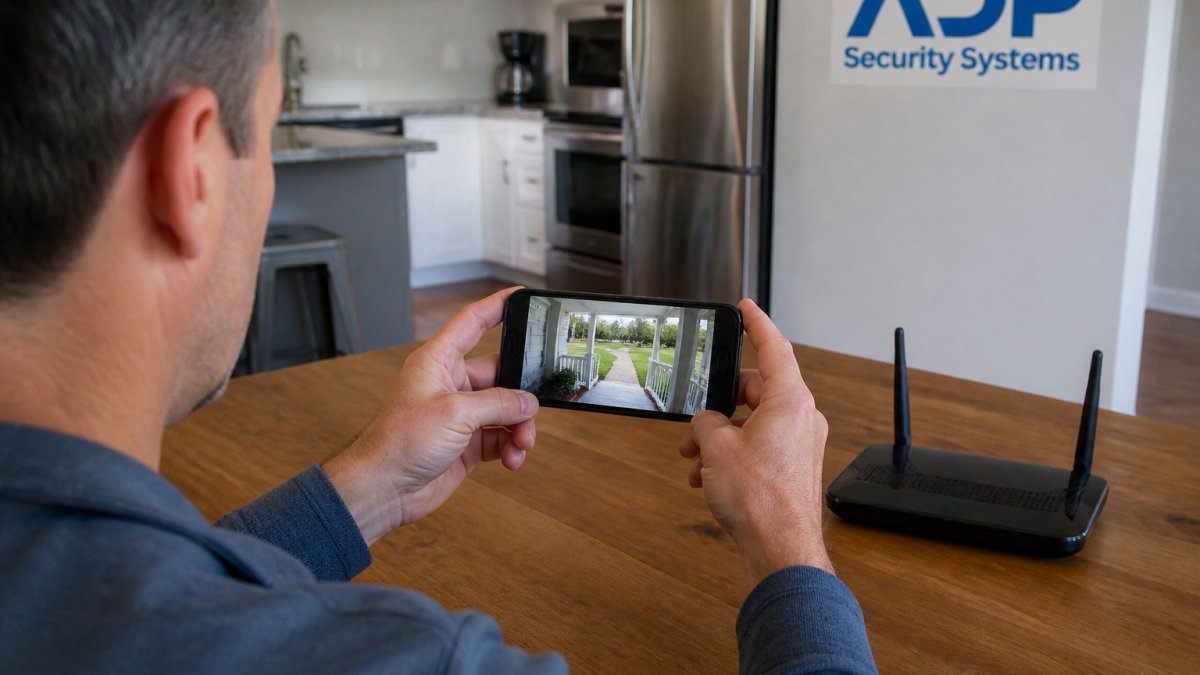
Step 1: Install the Camera’s Mobile App
Download the app that matches your camera brand from the Apple App Store or Google Play. Confirm the publisher matches the maker before installing.
A common mistake is grabbing a third-party app that claims to work with any camera. Those rarely support firmware updates, leaving your IP camera exposed over time. Stick with the official app.
Step 2: Create an Account and Add Your Camera
Open the app, create an account with your email and a strong password, then tap add device and select your camera type.
Turn on two-factor authentication if offered, it blocks most unauthorized remote access attempts. The app then walks you into the pairing screen.
Step 3: Connect to Wi-Fi and Scan the QR Code
Point your phone at the QR code on the camera or its box. The app reads it, starts device pairing, and prompts you for your Wi-Fi network name and password.
The camera joins your local network and appears in the app, with a live feed within a minute or two. If not, jump to the troubleshooting section below.
Many cameras only support 2.4 GHz Wi-Fi, not 5 GHz. If pairing fails, check whether your router splits those bands and connect your phone to the 2.4 GHz network first.
Cloud/P2P Access vs. VPN Access: Which Remote Viewing Method Fits Your Home?
There are two fundamentally different ways to reach a camera from outside your home. The choice comes down to who brokers the connection: the manufacturer’s cloud, or your own network.
How cloud and P2P access actually work
When you scan a QR code and see a live feed from a coffee shop, you are almost always using peer-to-peer (P2P) or cloud relay. The camera holds an outbound connection to the manufacturer’s servers; when your phone requests the stream, the server introduces the endpoints and video flows directly between them (P2P) or through the relay (cloud).
The practical consequences:
- No port forwarding required. The camera initiates the connection outbound, so most consumer routers and firewalls allow it by default.
- Setup is app-guided. You rarely touch router settings.
- The manufacturer’s servers are in the path. Even with encryption in transit, the vendor controls the rendezvous service and, in a relay scenario, may handle the stream.
How VPN access actually works
A VPN puts your phone on your home network as if it were in your living room. You run a VPN server on your router or a small always-on device; your phone connects to it before opening the camera app, which then talks to the camera over the local network.
- No third-party server in the video path. Traffic is encrypted between your phone and your router.
- You must configure the router. That means setting up the VPN server, creating credentials or keys, and either using a dynamic DNS service or a static IP so your phone can find your home network when its public IP changes.
- You need a router that supports it. Many consumer routers do; some ISP-provided gateways do not. WireGuard and OpenVPN are the two most common protocols, and WireGuard is generally faster and simpler to configure on supported hardware.
A decision guide, not a default
Use the following questions to pick a path. There is no universally correct answer.
- Does your camera app require the vendor cloud to function at all? Some cameras will only stream remotely through the manufacturer’s service. If so, VPN access may not help unless the app also supports local-network viewing.
- How sensitive is the footage? A driveway camera and a nursery camera are not the same risk. If the feed would be damaging if it leaked, the VPN path removes the vendor from the video route.
- How comfortable are you with router settings? If port forwarding, dynamic DNS, and firewall rules are unfamiliar, P2P is the pragmatic choice, and you can harden it with the steps in the security section below.
- How many people need access? Sharing a VPN with extended family is friction-heavy. Sharing an app invite is not.
- Do you need remote access to an NVR or DVR? Many NVRs support both a vendor P2P service and a direct connection. If yours supports a VPN, you can view all channels through one tunnel instead of exposing the recorder.
The hybrid approach most installers actually use
A common pattern is to run P2P for everyday convenience and add a VPN for the cameras that matter most. Some apps let you turn off cloud access entirely while leaving local viewing intact, worth finding.
If you want the simplest setup that works today, choose P2P and harden the account. If you want the vendor out of the video path and are willing to configure your router, choose a VPN. You can run both and switch per camera.
WireGuard official documentation
How to Share Security Camera Access with Family
Sharing mobile access with family takes a few taps and one decision: what role each person gets. Most apps invite users by email and assign user permissions.
Follow these steps:
Get a Free Security Assessment →
- Open the app and go to Settings or Users
- Tap share access or Invite User
- Enter the family member’s email
- Choose their role: admin user or view-only
- Send the invite and have them accept
Give admin user rights only to people who should change settings; everyone else gets view-only access to the live feed and motion alerts, so no one accidentally deletes a camera or disables push notifications.
For elderly parents or a caregiver, view-only access is usually enough. They can check in without the risk of changing your network configuration.
Security Camera Mobile App Troubleshooting: Fixing Connection Failures
Most connection failures trace back to Wi-Fi signal, router settings, or a stale login. The key distinction is whether the camera works at home but fails when you leave, that tells you whether you are debugging the camera or the path to it.
Start with the basics
Before assuming the camera is broken, confirm:
- The camera’s power light is on and steady
- The app shows the camera as online while your phone is on home Wi-Fi
- Your phone has working mobile data or Wi-Fi when you are away
If the camera is offline even at home, the problem is local. If it is online at home but unreachable remotely, the problem is in the remote path.
Router, firewall, and network checks
These are the checks that resolve most remote-only failures.
- Wi-Fi band. Many cameras only support 2.4 GHz. If your router uses one SSID for both bands, split them or connect the phone to the 2.4 GHz network during pairing.
- Signal strength at the camera. A camera at 2 bars may work locally and fail remotely. Check the signal reading in the app, not just whether the camera is online.
- Outbound connectivity. P2P and cloud access require the camera to reach the vendor’s servers. If your router or ISP blocks outbound traffic on unusual ports, the camera may never register with the cloud even though local viewing works.
Diagnostic flow for common failure states
Work top to bottom and stop when the symptom matches.
- No live feed, camera shows online → Check the phone’s internet, then force-close and reopen the app.
- Camera offline, light is solid → Power cycle the camera. If it drops again, check Wi-Fi signal and consider a mesh node.
- Feed freezes or stutters → Test upload speed at home and lower the remote stream quality in the app.
- App will not log in → Reset the password, confirm two-factor codes are current, and check for an account lock.
- Works at home, fails away → Check the app’s remote-access toggle first, then outbound connectivity, then dynamic DNS if applicable.
- One camera missing, others fine → Re-scan the QR code and re-pair it. Factory reset only as a last resort.
- Worked for weeks, then stopped → Most likely a changed public IP or a firmware update that reset cloud settings.
- Only certain users cannot view remotely → Check their permissions; a restricted role may not include remote streaming.
If a camera shows offline but its light is solid, do not factory reset it yet. Resetting wipes your network configuration, and you will have to redo the entire setup. Try a power cycle, then a router reboot, before resetting anything.
Keep a note of your camera’s local IP address and your home’s public IP. When remote access breaks, comparing those two numbers against what the app or router currently shows will tell you in seconds whether the problem is a lease change or something else.
Hardening Remote Access: Privacy and Network Security Basics
Every camera you expose to the internet is a door someone can knock on. Network security for remote access comes down to a few habits that take minutes to set but protect you for years.
Do these:
- Change the default password on every camera
- Turn on two-factor authentication in the app
- Keep firmware update current
A guest network keeps cameras off the same lane as your laptops and phones, so a compromised camera can’t hop to your personal devices.
Check your router for open ports you didn’t set. Unused port forwarding is one of the most common ways cameras get exposed. If you didn’t open it, close it.
Mobile Data, Bandwidth, and What to Expect from Your Live Feed
Your live feed quality depends on upload speed at home and bandwidth on your phone.
What to expect:
- One camera, good Wi-Fi: smooth feed, low latency
- Three or more cameras at once: possible buffering
- Weak cell signal: lower resolution, more lag
Upload speed is the number most people ignore. Run a speed test at home and check the upload figure, not the download.
A camera that streams perfectly at home but fails the moment you leave town is a common frustration, and it usually comes down to network setup, not the hardware.
Frequently Asked Questions
How can I access my security cameras remotely?
You can access security cameras remotely through a manufacturer’s mobile app that connects your camera to your home Wi-Fi network. After installing the app, creating an account, and pairing your camera by scanning its QR code, you can view a live feed from anywhere with an internet connection. For stronger privacy, some systems support a VPN like WireGuard instead of a cloud P2P connection, which routes video through your own network rather than a third-party server.
Why can’t I view my security cameras remotely?
The most common causes are a weak Wi-Fi signal at the camera, an outdated firmware version, or a router firewall blocking the app’s connection. Start by checking signal strength in the app, then confirm your camera has the latest firmware update. If those look fine, reboot your router and camera. Upload speed matters too: a live feed typically needs at least 1-2 Mbps of upload bandwidth per camera for smooth remote viewing.
How do I share security camera access with family safely?
Use the app’s built-in user permissions rather than giving out your main admin login. Create a separate account for each family member with view-only access if they only need to check the live feed, and reserve admin rights for yourself. Many apps also support two-factor authentication on shared accounts. If someone leaves the household, revoke their access immediately from the user management screen.
Do I need a camera app to view security cameras remotely?
Most consumer Wi-Fi cameras require the manufacturer’s mobile app for initial setup and remote viewing. Some systems also offer browser access, which lets you log in from a laptop without installing anything. NVR and DVR systems often support both an app and a web portal. If you prefer not to use a cloud app at all, a VPN connection paired with a local viewing client gives you remote access without relying on the manufacturer’s servers.